
If you are having trouble with your microphone features, the following information can help you troubleshoot and resolve issues.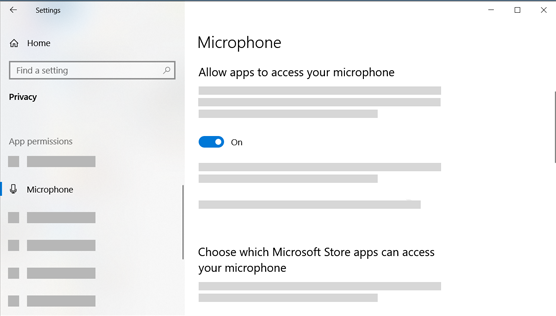
If your microphone isn't detected after updating Windows 10, you may need to give your apps permission to use it.
-
To let apps access the microphone, select Start, then select Settings > Privacy > Microphone. Select Change, then turn on Allow apps to access your microphone.
Others can't hear me
-
If your headset has a Mute button, make sure it isn't active.
-
Make sure that your microphone or headset is connected correctly to your computer.
-
Make sure that your microphone or headset is the system's default recording device. Here's how to do this in Windows 10:
-
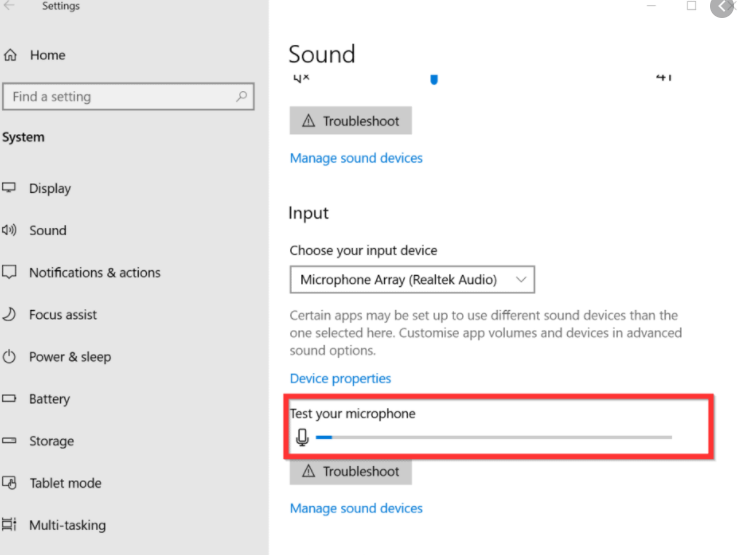
Select Start , then select Settings > System > Sound .
-
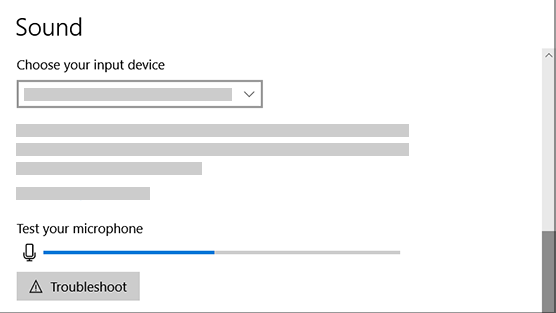
In Input, ensure your microphone is selected in Choose your input device.
-
To test your microphone, speak into it and check Test your microphone to make sure Window
-
Others cannot hear me in RingCentral calls
-
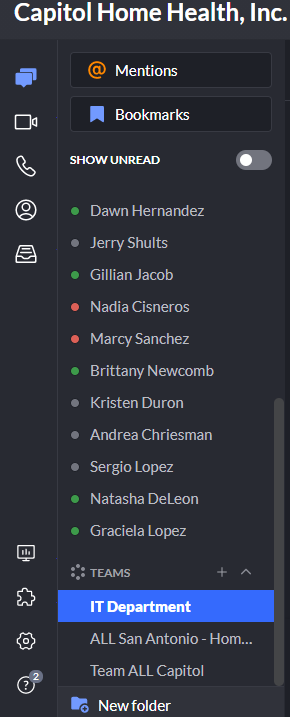
If Ringcentral is not open, select Start, then RingCentral to open it.
- In the bottom left corner under messages, video, contacts, notes, click the Settings.
-
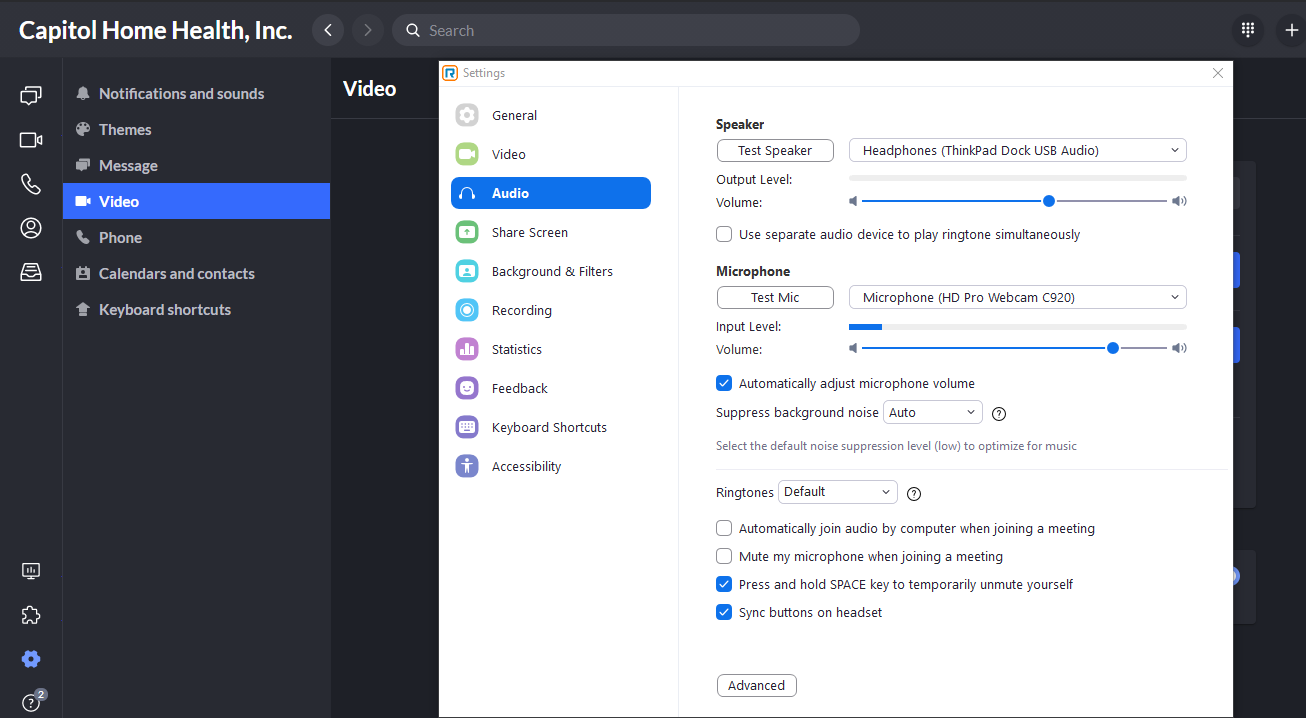
In Video, Under General, choose Video meeting settings by click on Edit, choose Audio, under Microphone, test mic. It will record so speak and click record again to have it stop and it should play it back. If not choose another Microphone next to Test Mic
The microphone volume is too low or does not appear to be working at all
-
Make sure that the microphone or headset is connected correctly to your computer.
-
Make sure that the microphone is positioned correctly.
-
Increase the volume of your microphone. Here's how to do this in Windows 10:
-
Select Start , then select Settings > System > Sound .
-
In Input, ensure your microphone is selected under Choose your input device, then far right side select Additional Device Properties.
-
On the Levels tab of the Microphone Properties window, adjust the Microphone and Microphone Boost sliders as needed, then select OK.
-
Speak into your microphone while checking under Test your microphone to make sure your settings work. If you see the line moving from left to right, your microphone is working. If you see no change, the microphone is not picking up the sound.
 https://support.microsoft.com/en-us/windows/fix-microphone-problems-5f230348-106d-bfa4-1db5-336f35576011
-
Comments
0 comments
Please sign in to leave a comment.